
The Overlay Manager provides a single location for managing all overlays. To learn more about drawing overlays see Overlays
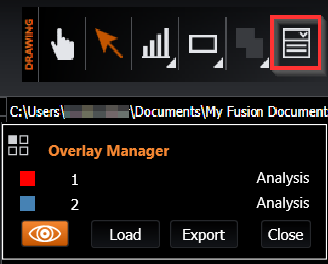
The Overlay Manager can be opened by clicking the Overlay Manager button located on the Drawing and Mapping Tools Toolbar.
The Overlay Manager shows a list of all overlays, their colour, name and type.
Clicking on the icon in the top left of the Overlay Manager will move it to different corners of the image display.

To change overlay colours, click the overlay colour square to open the colour picker.

Each overlay in this list will include copy and delete buttons located on the right side.

Selecting Overlays
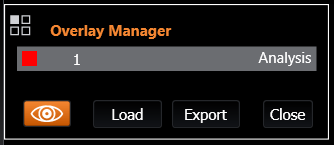
When an overlay is selected in the manager, it is automatically brought to the front on the image. This ensures it remain selectable, even if it was previously covered by other overlays.
Renaming Overlays
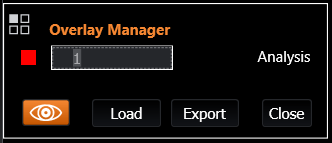
Overlays can be renamed by clicking on the name and typing in the new name, pressing the enter/return key will set the name. Names must be unique, and cannot contain these characters: <>?|""?/\:*
Show Overlay Labels

This button toggles the label visibility for each overlay, helping minimise visual clutter on the image.
Loading .roi files
Using the ‘Load’ button you can select .roi files from a previous Fusion session, Overlays used during acquisitions, or ImageJ/Fiji.
Multiple files can be imported at once. If overlays with the same name exist in Fusion, the new overlays will be loaded with a number denoting how many previous overlays there are with the same name. a, a_1, a_2
Exporting Overlays as .roi files
Using the ‘Export’ button you can save all overlays contained in the list to .roi formatted files, which can be opened again in Fusion, or in ImageJ/Fiji.
Overlays will be saved to individual files. If files with the same name exist in the folder, the new overlays will be saved with a number of how many previous files there are with the same name. a.roi, a_1.roi, a_2.roi