
Offline activation can be achieved by following the steps below:
-
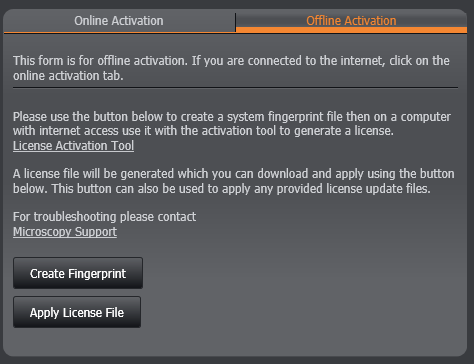
On the offline machine, click on 'Create Fingerprint' from the Offline Activation tab; you will be asked to save a fingerprint of the system to a file with the extension .c2v.
-
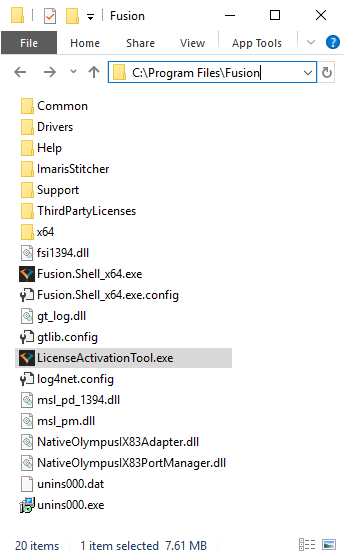
Locate the license activation tool.
-
Move the fingerprint file and activation tool to a computer with internet access.

-
Run the activation tool on the computer with internet access.
-
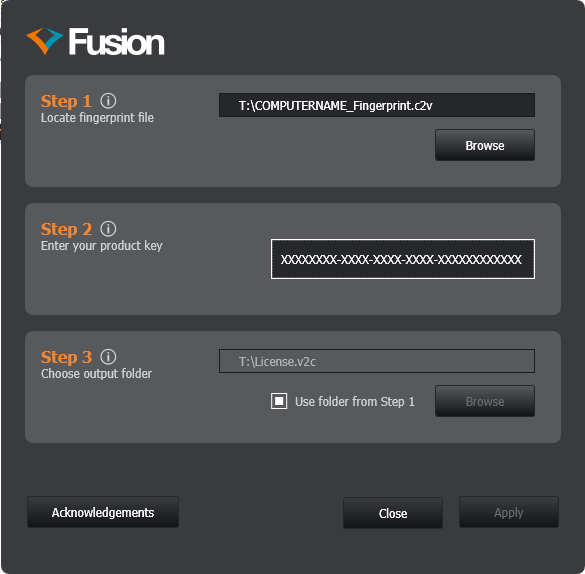
Locate the fingerprint file you generated (If you ran the activation tool in the same folder as the fingerprint file, it will be selected automatically).
-
Enter your product key in the text box. Choose the output for the license file (The folder containing the fingerprint is automatically selected).
-
Click the 'Apply' button and the license file will be created at the path specified in Step 3 with the extension .v2c.
-
-
Move the license file (.v2c) to the computer with Fusion installed (where you generated the fingerprint).
-
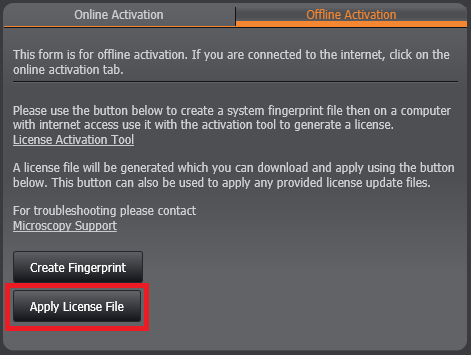
On the offline activation form click the 'Apply License File' button and locate the license file (.v2c).
-
Your copy of Fusion should now be licensed and ready for use.