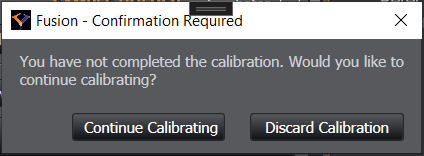
Calibration of parfocality and parcentration allows you ensure that the Z focus and XY center is aligned across objectives. Performing this calibration is especially important after exchanging objectives.
In this page we go through each step of the calibration process.
If you still need to change your objectives, see how to do this in Objective Setup
Reference
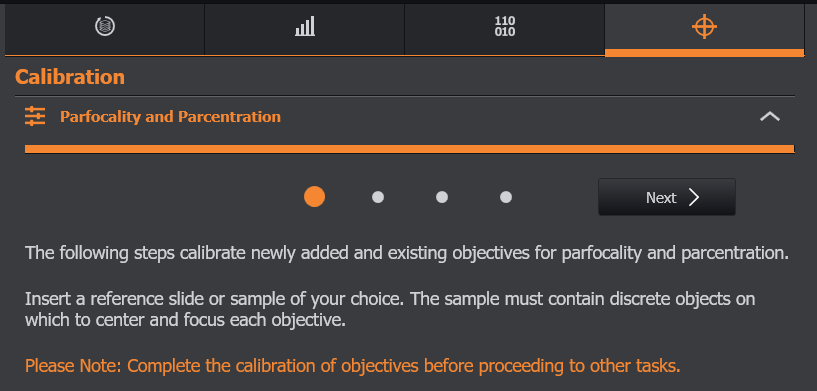
Begin by inserting a slide into the sample holder. The selected sample must contain discrete objects as a reference on which to center and focus each objective. A reference slide with a crosshair is recommended.
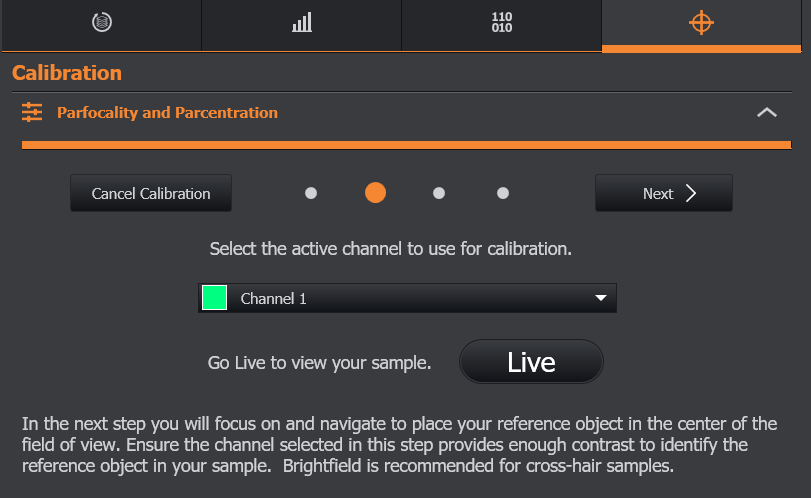
Selecting Active Channel and Viewing Your Sample
On this step select the channel that works best for viewing reference in your sample. All channels are available to use. Then click Live and proceed to the next step.
Storing Best Focus and Saving Calibration
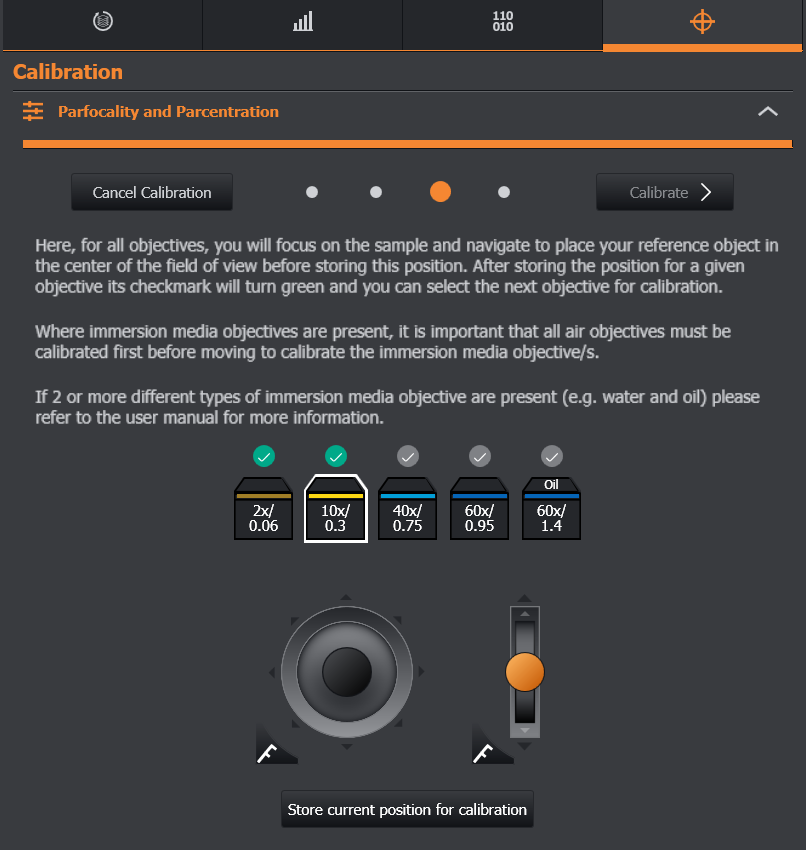
Starting with the highest magnification air objective first, navigate to find the center point and the best focus point of the reference object. A crosshair is overlayed on your image to assist in centering. Navigation control is available on this step and within the remote panel. See How to Perform Parfocality and Parcentration Calibration When 2 or More Immersion Media are in Use if using mulitple immersion media.
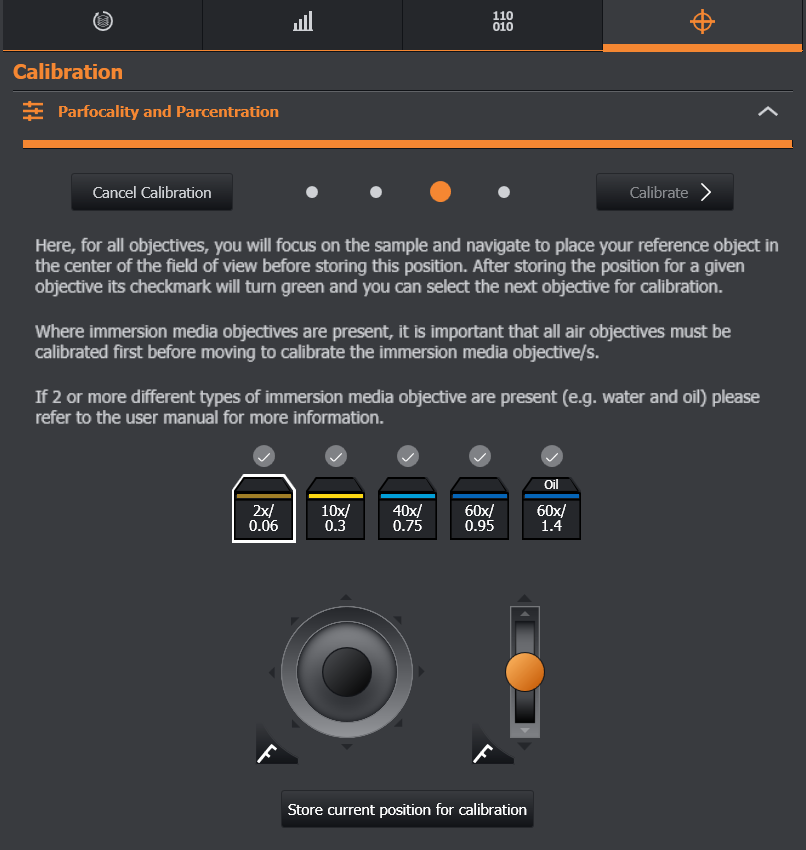
Once the position is at the best center and focus point click the “Store current position for calibration” button. A green check mark will then appear on the objective’s icon.
Proceed by selecting another air objective, navigating to the best center and focus point, and storing the position for calibration.
After storing the best position for all objectives click the “Calibrate” button in the top right corner of the dialog.
Successful Calibration
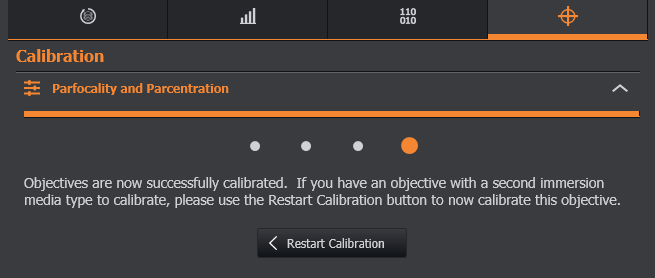
After clicking the “Calibrate” button the new calibration is now stored for each objective.
Cancelling a Calibration
We recommend completing a calibration once it is started before moving to any other tasks. However, at any point you can cancel a calibration using the “Cancel Calibration” button in the upper left hand corner of each step.