
Available Options
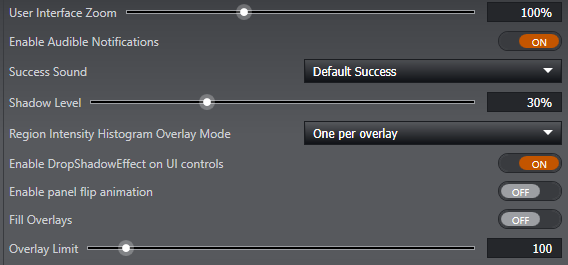
User Interface Zoom
Use the User Interface Zoom Slider, or manually enter a zoom value, to shrink or magnify the on-screen display.
Default: 100%
Enable Audio Notifications
This will enable an audio notification to be played at the end of a protocol.
Default: On
Success Sound
This will be the sound that is played. If you select each sound you will hear a preview of what that sound effect is.
Default: Default Success
Region Intensity Histogram Overlay mode
Manage how pixels within overlays are used in region intensity histograms.
-
One per overlay - separate data sets
-
Group overlays - combine overlays into single data set
Default: One per overlay
Enable DropShadowEffect on UI Controls
Turn drop shadow effects On or Off for some of the UI controls.
Default: On
Enable panel flip animation
Enable or disable panel flip animations when switching between panels.
Default: Off
Fill Overlays
Set overlays to only show an outline (Off) or use a translucent fill effect (On).
Default: Off
Overlay Limit
Specifies the maximum limit of overlays that can be drawn.
Default: 100
Note that some changes made in preferences will not take effect until the application has been restarted.